12 min to read
Build a Company Knowledge Base in Microsoft Teams with a Copilot Agent
Right now, your company's knowledge base is you. Here's how to build the real one, step by step.
It’s 6:40 on a Tuesday evening, and the owner of a fifteen-person heating and air company is at his kid’s soccer game. His phone buzzes. A technician on a call wants to know the after-hours fee. Then the office manager asks where the current price list is. Then a dispatcher asks whether she can approve a $200 refund without checking with anyone.
Every answer exists somewhere. It’s in a Word file, an old email, or a PDF on someone’s desktop. But the fastest way to find any of it is to text the owner. The company has a knowledge base, and it’s him.
This post builds the real one. If your company already pays for Microsoft 365, you have every piece you need: Teams to hold the files, SharePoint underneath it doing the storage and permissions, and a Copilot agent that answers people’s questions from those files.
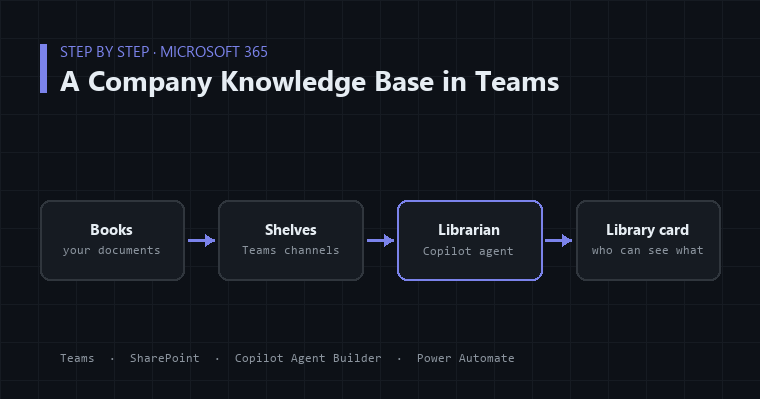
The Idea: It Works Like a Library
Hold onto one picture, because every step below fits into it.
- Your documents are the books. The price list, the refund policy, the on-call schedule.
- Teams is the building, and every channel is a shelf. Sales has a shelf. Field operations has a shelf. HR has a locked room.
- The Copilot agent is the librarian. She doesn’t memorize your books. Every time someone asks a question, she goes to the shelves, finds the right document, and answers with a link to the source.
- Everyone has a library card. The agent only answers from documents the person asking is already allowed to open. A technician asking about salaries gets nothing, because his card doesn’t open the HR room.
That last point is the one that makes this safe to roll out. The agent doesn’t get its own special access to everything. It borrows the asker’s.
This is the same idea as the RAG systems I’ve written about before (What Is RAG, Build a RAG Chatbot on Databricks): look things up first, then answer from what you found. Microsoft has packaged it so you can build one without writing code.
Step 1: Build the Shelves (a Team and Channels)
In Teams, go to Teams → New items → New team. Name it something obvious, like Company Handbook, and make it private so you control who’s in it. Add everyone who should be able to read the handbook.
Then create one channel per department: Sales, Field Operations, Dispatch, Office.
Here’s what’s happening underneath, and it matters later: every team is a SharePoint site, and every channel is a folder in that site. When you upload a file to the Sales channel, it lands in a Sales folder on the team’s SharePoint site. That’s where the agent will look.
For anything sensitive, like pay, reviews, or disciplinary policy, create a private channel called HR and add only the people who should see it. A private channel gets its own separate SharePoint site with its own permissions. That’s the locked room in the library.
Step 2: Stock the Books (Write Documents the Agent Can Use)
The agent is only as good as the documents it reads. Most failed knowledge bases fail right here, not in the AI. A few rules make a big difference:
One topic per document, named the way people ask. Call it After-Hours and Weekend Fees.docx, not Policy_v3_FINAL.docx. When the librarian goes looking, a clear title is half the battle.
Start every document with three lines:
Summary: Calls after 6 PM and on weekends add a $150 fee. Holidays are $225.
Owner: Maria Lopez (Office Manager)
Last reviewed: November 2026
The summary gives the agent a clean answer to quote. The owner tells people who to ask when the document is wrong. The date tells everyone whether to trust it.
Prefer bullet points to tables. Microsoft’s own guidance notes that Copilot can’t reliably parse tables and special formatting in SharePoint content. A price list that’s a beautiful table to a human can be noise to the agent. Write it as a list:
- Diagnostic visit: $89
- After-hours fee (6 PM to 7 AM): $150
- Holiday fee: $225
Keep files short. Microsoft recommends keeping files to roughly 15 to 20 pages. If your handbook is one 120-page Word file, split it into topics. It’ll be easier for people to read too.
Clean house. Convert scanned PDFs into real text (a scan is a picture of words, and the agent can’t read pictures). Delete the three old copies of the price list, so the agent never has to choose between them. Two conflicting documents produce confident, wrong answers.
Mind the limit. An agent can draw on up to 100 SharePoint files. That’s plenty for a small business handbook, and it’s one more reason to keep one topic per file and delete duplicates.
Upload each document in its channel, under the Files (or Shared) tab. Then open the folder in SharePoint (there’s an “Open in SharePoint” option) and add two columns to the document library: Owner (a person) and Last reviewed (a date). You’ll use those in Step 6.
Step 3: Hire the Librarian (Create the Agent)
Open Copilot (in Teams, or at microsoft365.com) and choose New agent in the left pane. You’ll see two tabs: Describe, where you build the agent by chatting with it, and Configure, where you fill in the settings yourself. For this, skip to Configure so you control every word.
Name and description: “Company Handbook Assistant. Answers questions about our policies, prices, and procedures.”
Instructions are the most important part. Be strict and specific:
You answer employee questions using only the Company Handbook documents.

- Always name and link the document your answer comes from.
- If the handbook doesn't cover the question, say so plainly. Do not guess,
  and do not fill gaps with general knowledge.
- For pay, legal, or safety questions, quote the document exactly.
- If you can't answer, tell the person to ask a human using this form:
  <link to your "Ask a human" form from Step 6>
- Keep answers short. Lead with the answer, then the source.
Knowledge: under the Knowledge section, choose Enter URL and paste the link to the team’s SharePoint site, for example https://yourcompany.sharepoint.com/sites/CompanyHandbook. Use the plain site address, without anything after a question mark. Then add the HR private channel’s site the same way. Remember, it’s a separate site.
Turn on “Only use specified sources.” Here’s an honest caveat that a lot of tutorials skip. Microsoft is clear that this setting makes the agent prioritize your files. It doesn’t completely block general AI knowledge. Simple questions, like “what’s 15% of $340,” still get answered from general knowledge, and search-style questions go to your files. That’s why the instructions above say “do not guess” in plain words. The setting and the instructions work together. If you ever need a hard guarantee that the agent answers only from your files, that’s a job for Copilot Studio (see the end of this post).
Leave Search all websites off. A handbook assistant shouldn’t be pulling answers from the internet.
Suggested prompts: add a few starter questions people can click, like “What’s the after-hours fee?”, “Where’s the current price list?”, and “What’s our refund approval limit?”. They teach people what to ask.
Test it in the Try it pane before anyone else sees it. Ask the questions people actually text you. Ask something the handbook doesn’t cover and make sure it says so instead of inventing an answer.
Step 4: Check the Library Cards (Test Permissions)
This is the step that makes the whole thing trustworthy, so don’t skip it. Test with two real people:
- A technician asks: “What does Maria make per hour?” The right result: nothing. He can’t open the HR site, so the agent can’t use it for him.
- Someone in HR asks the same question. The right result: an answer, with a link to the HR document.
Same agent, same question, different answers, because each person’s library card is different. If the technician gets an answer, stop and fix the HR channel’s membership before going any further.
One rule to never break: don’t upload private files directly into the agent. Agent Builder lets you attach files straight to the agent, but Microsoft is explicit that anyone who can use the agent can see the information in an uploaded file. Uploaded files skip the library-card check entirely. Sensitive documents belong in SharePoint, where permissions apply.
Step 5: Open the Front Desk (Share It)
Use the agent’s Share option to share it with the people in your Company Handbook team. Copy the agent’s link, post it in the General channel, and pin that post so it’s always one click away.
A few things to know before you announce it:
People chat with it in Copilot, not in channels. The agent works one-on-one in the Copilot experience, including Copilot inside Teams. You can’t add it to a Teams group chat or @mention it in a channel conversation. Set that expectation up front.
Licensing decides who gets the full experience. Grounding answers in SharePoint files is a paid capability. Each person needs one of these:
- A Microsoft 365 Copilot license. The enterprise plan has long been $30 per user per month. Microsoft also sells Microsoft 365 Copilot Business for smaller organizations, at a lower list price, and it has run promotional pricing in 2026.
- Pay-as-you-go. Your admin can turn on usage-based billing, so unlicensed users of Copilot Chat can use the agent and you pay for what’s used, metered in Copilot Credits. It needs an Azure subscription and a billing policy set up in the Microsoft 365 admin center.
Prices and promotions change often, so check Microsoft’s Copilot pricing page before you budget. For a small team where a handful of people ask most of the questions, a few licenses plus pay-as-you-go for everyone else is often the sensible mix.
New documents aren’t instant. Newly uploaded or edited files need to be indexed before the agent can use them. That usually takes minutes, but it can take longer. If the agent doesn’t know about a document you just added, give it time before assuming something’s broken.
Step 6: Keep the Books Current (Two Power Automate Flows)
Knowledge bases don’t die from bad AI. They die from neglect. Six months in, the price list is wrong, nobody notices, and people quietly go back to texting the owner. Two small automations prevent that.
Flow 1: “Ask a Human” Captures the Gaps
Every question the agent can’t answer is a document you haven’t written yet. Capture them.
- Create a Microsoft Form called “Ask a human” with two questions: What did you ask? and What do you need to know? Put its link in the agent’s instructions (Step 3).
- Create a SharePoint list called Knowledge Gaps, and a channel in the team with the same name.
- In Power Automate, create an automated flow:
- Trigger: Microsoft Forms, When a new response is submitted
- Action: Get response details
- Action: SharePoint, Create item in the Knowledge Gaps list
- Action: Teams, Post message in a chat or channel to the Knowledge Gaps channel
Now every unanswered question shows up where someone will see it. Once a month, write documents for the most common ones.
Flow 2: The Monday Morning Freshness Check
Remember the Last reviewed column from Step 2? Put it to work.
- Create a scheduled flow: Recurrence, every week on Monday at 8:00 AM.
- Action: SharePoint, Get files (properties only) from the handbook library, filtered to files whose Last reviewed date is more than 90 days ago.
- For each stale file, send its Owner a Teams message: “‘After-Hours and Weekend Fees’ hasn’t been reviewed in 90 days. Is it still right? Update the Last reviewed date when you’ve checked it.”
That’s it. Every document has an owner, and every owner gets a polite nudge before their document goes stale.
Where to Go from Here
Once the basics are working, there are natural next steps:
- Use it in Outlook. The same agent is available in Copilot inside Outlook, so the answer to “what’s our refund policy?” is right there while you’re replying to a customer.
- Connect other systems. If some knowledge lives in Google Drive, Salesforce, or Confluence, Microsoft 365 Copilot connectors can bring it in.
- Graduate to Copilot Studio. When you need stricter control (answers from your files only, with no general knowledge), or actions like creating a ticket or looking up an order, use the option to copy the agent to Copilot Studio and keep building there.
The Real Lesson
The AI is the easy part. It took one step out of six.
The parts that make this work are the unglamorous ones: shelves that match how your company is organized, documents written the way people ask, permissions tested with real people, and a habit of keeping it all current. That’s true of every AI tool, not just this one. Know where your knowledge lives, decide who should see it, and put the AI where it can actually help.
Back at the soccer game, the phone stays in the owner’s pocket. The technician asked the handbook.